Excel is heaven sent for analysts. And with recent updates it can now pull data from multiple sources including web. With new tools, we can get and process data from multiple sources.
In this tutorial:
However, it is still catching up with advancement in Artificial Intelligence and its prowess to automate tasks. Excel still require manual intervention and physical labour to make the solution.
For example, for a simple stock tracking that reliably records changes every few hours, update relevant stock charts, and send recommendations via email based on price changes will require immense Excel bravado from formulas, Power Query, VBA etc.
That’s when mcp.run is a show stopper that transforms Excel from a static tool into an intelligent automation platform using artificial intelligence. Liberating users from formulas and macros only, mcp.run connects web, cloud storage, email services and external data sources creates an environment that runs hands-free.
Let’s learn how mcp.run works with two examples:
- first involving stock tracking system where we fetch data from web; and
- second about sales comparison tool made entirely by mcp.run
Stock Tracking System using mcp.run
Stock tracker in Excel is a usual happening. As Excel offers ways to chart the data, it is natural to have the stock updates within Excel environment.
This can take a couple of hours to days to make such tracking solution. Maintaining and updating such solution takes additional time. And still it won’t be completely automated.
Instead of doing it manually and still having a make-shift solution, we can use mcp.run. It can fetch the data from sources including Yahoo and Google Finance, and store the information in a workbook on OneDrive. And not just that, we will also get buy/sell recommendations based on stock changes.
Making stock tracker in Excel using AI – step by step
Go to mcp.run and signup for a free account.

In the search bar, type Excel and press Enter.
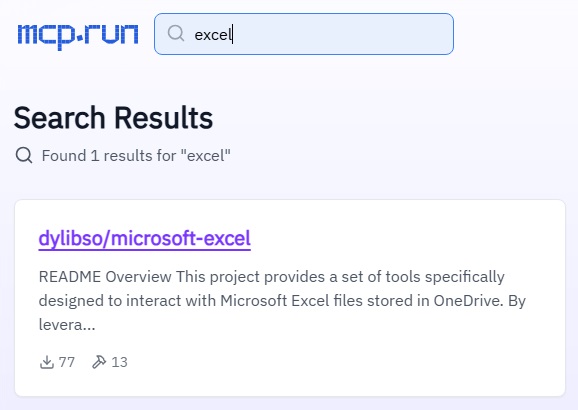
Click the search result and press Continue to Install. Click Authorize and Install on the next page. This will install Excel servlet.
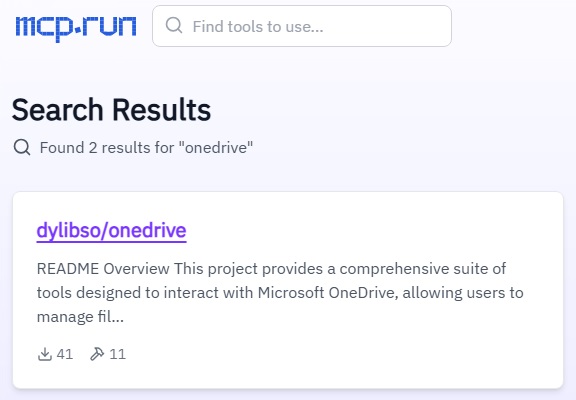
Go to search bar again and type OneDrive and complete the installation.
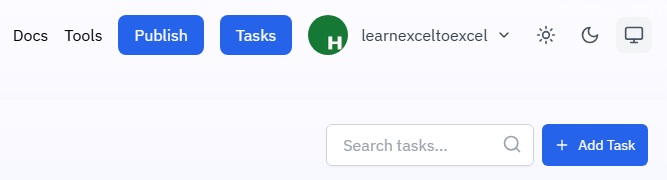
Once both servlets are installed, click Tasks and click Add Task button.
Give the task a name and put the following prompt in the editor:
Search Yahoo Finance for the latest stock prices for these companies:
AAPL
NVDA

Confirm that the price you find is accurate by checking the price against Google Finance.

Update the "Stock Tracker" Excel file in OneDrive and add the prices for each stock in its own respective worksheet, noting the current date and time in US Pacific Time when you update the prices. Also note the source where you pulled the stock price from.

Send an email with the latest price for each stock to [email protected]. Compare the last two prices in the worksheet for each stock (i.e. from right now and the most recent time before this), and if the price change is greater than 1% in the positive direction, note in the email that I should consider selling. If the price change is greater than 1% in the negative direction, note that I should consider buying. Include the dates and times of the old and new price when providing this recommendation.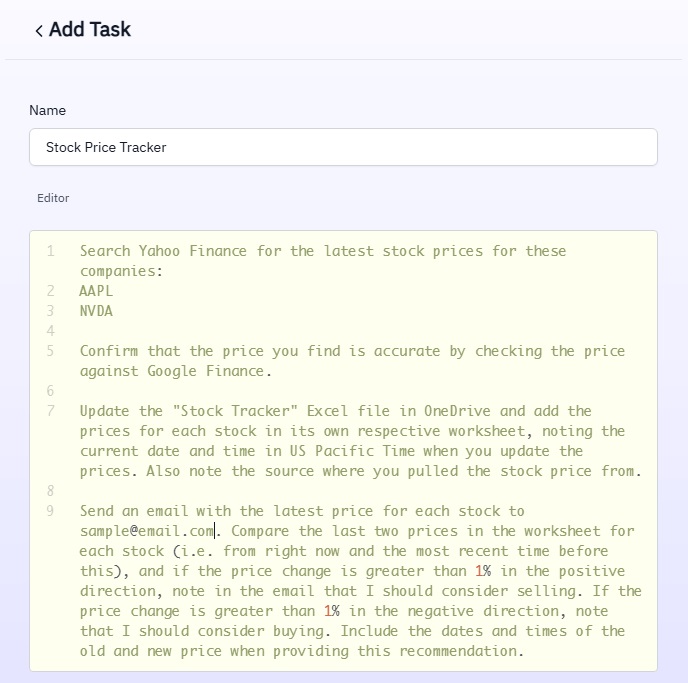
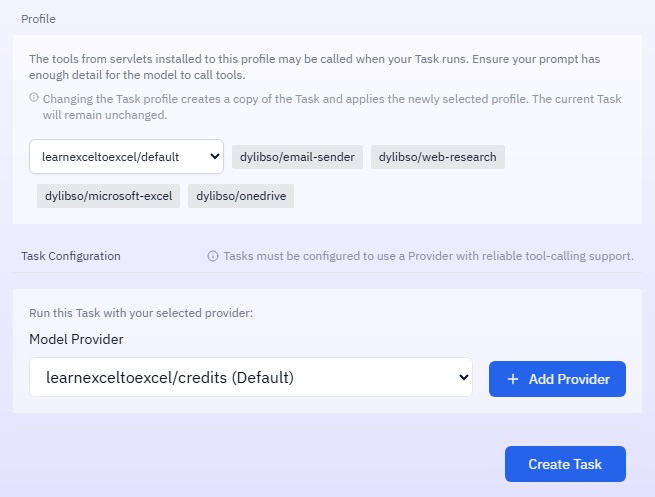
Click Create Task to continue on the same page:
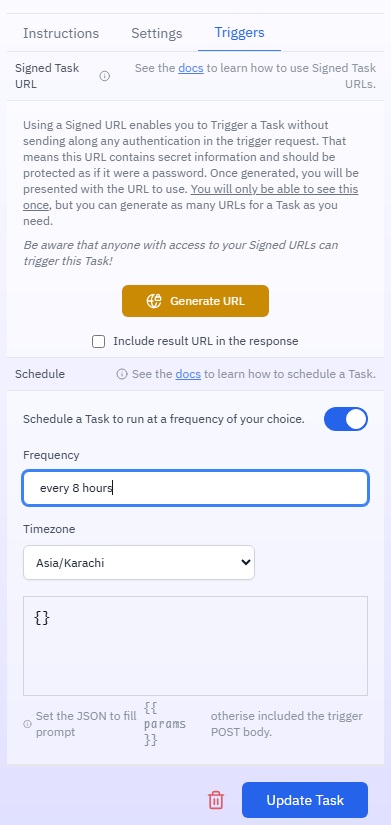
To make the task run automatically at specific interval, go to Triggers and toggle the scheduler button and mention every 8 hours or whatever you desire in the Frequency input field. Click Update Task button to register the changes.
Click Run Task button. A.I will start working to create the file and populate it with the latest stock prices and in the end send an email.

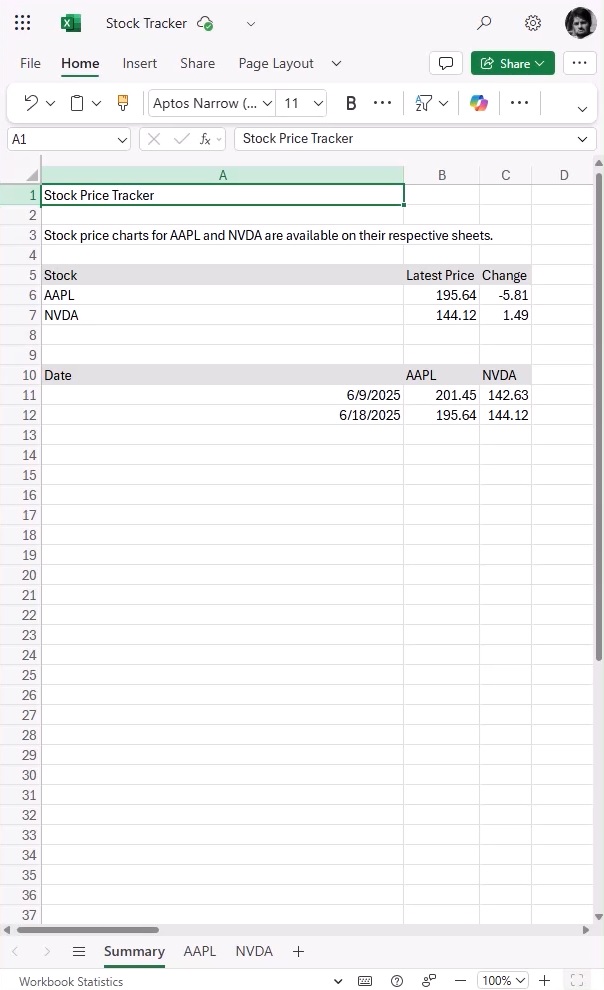
Here is the workbook created and updated with stock prices and changes on each individual worksheet:
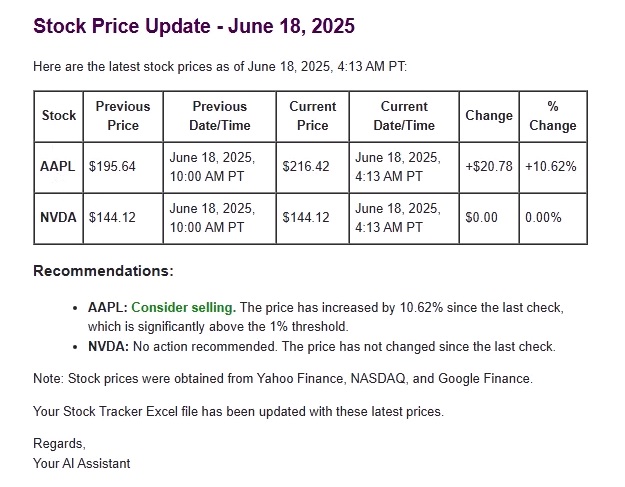
An automated email will be sent updating on price changes and relevant buy/sell suggestions:
Sales Comparison Tool – Formula Finder using mcp.run
Say we have sales data with us and we want to compare sales of two employees. The usual way is to first learn the formulas and functions needed and then format the worksheet in a desired way to summarize the comparison results.
What if, instead of doing all this, we tell all of it to be done for us without writing a single formula. That’s where mcp.run comes to help again!
Formula Finder – Step by step
Go to mcp.run and signup for a free account.
In the search bar, type Excel and press Enter. Click the search result and press Continue to Install. Click Authorize and Install on the next page. This will install Excel servlet.
Go to search bar again and type OneDrive and complete the installation.
While on profile page, toggle Email sender servlet off as that is not needed.
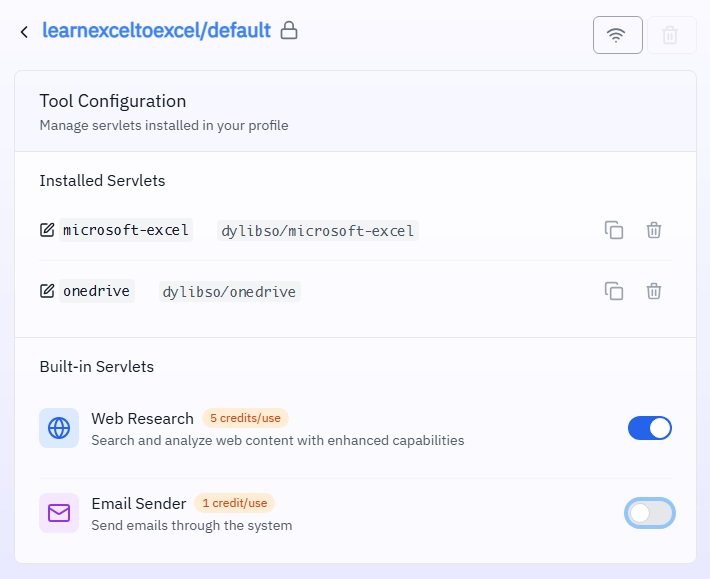
Once servlets configured, click Tasks and click Add Task button.
Give the task a name and put the following prompt in the editor and click Create Task:
Take a look at the first few rows of data in the file {{ file }} in OneDrive. Tell me what the most efficient Excel formula is for {{ action }}. Save the analysis with the formula in the worksheet called "Formula Finder" and run it a few times to show me how it's done. If that worksheet is already populated with some data, find a clear place to put it without disrupting anything else going on.

Assume I have the latest version of Excel, no need to be backwards compatible.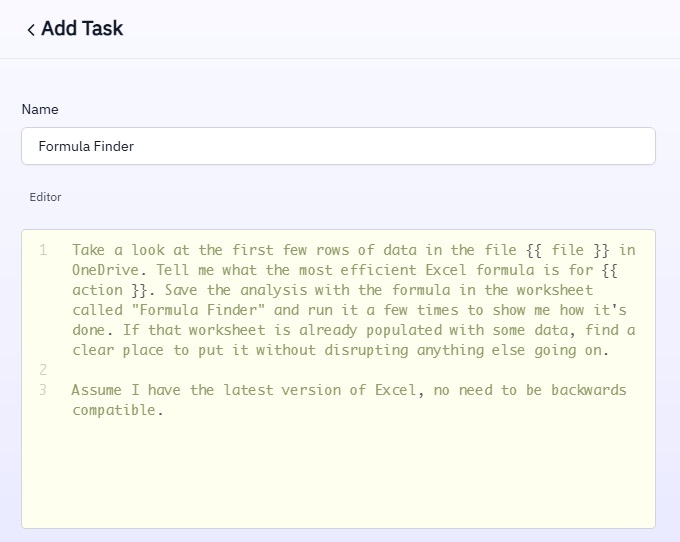
Click Parameters drop-down and put the following and click Run Task button:
{"file":"Salespeople","action":"inputting two salespeople and then calculating who has generated more revenue in a particular region"}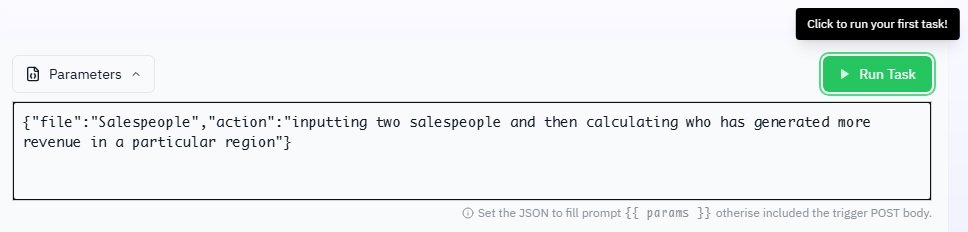
A.I. will immediately start working on the prompt, creating the file and populating it with relevant formulas and supporting text. Once complete, file is ready for sales comparison purposes.
Here is the snapshot of the finished solution: